Dune: Awakening Optimized Settings 2026
Rendering a desert shouldn't be too challenging, but there isn't the only landscape you'll encounter in Arrakis. And when Unreal Engine 5 is involved, you know you'll need some tweaks for an optimal experience.
If you want to keep your fps and frametimes smooth while you're trying to survive the inhospitable planet, here are our Dune: Awakening optimized settings.
Display Settings
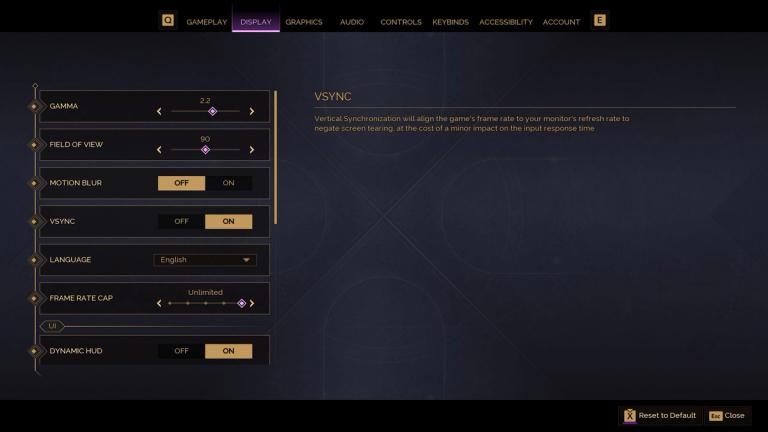
As usual, display settings are simple, although Dune: Awakening also includes some accessibility options here. Field of View is personal preference, but it does have a performance impact. The bigger the FoV, the more things are rendered on screen at once, so bear that in mind. The default of 90º is fine.
Motion Blur should be off and frame rate cap should be unlimited. If you want to cap your fps, do it through your graphics card's software, it will be more reliable. When it comes to the UI accessibility options, they are almost all personal preference, but we have some advice:
- Dynamic HUD On works well. It hides your HUD when you haven't made any actions for a bit, giving you a more cinematic experience. You can also toggle the UI On and Off using F6 (default keybind) to take some screenshots.
- If you're using a mouse, turn Hardware Cursor on, turning off any acceleration.
- I would recommend using Hotbar on mouse+keyboard and Radial Wheel on controller, but experiment to see what you prefer.
- If you're playing with friends, turn on Show Friendly Indicators so you can distinguish between them easily.
Dune: Awakening Optimized Settings
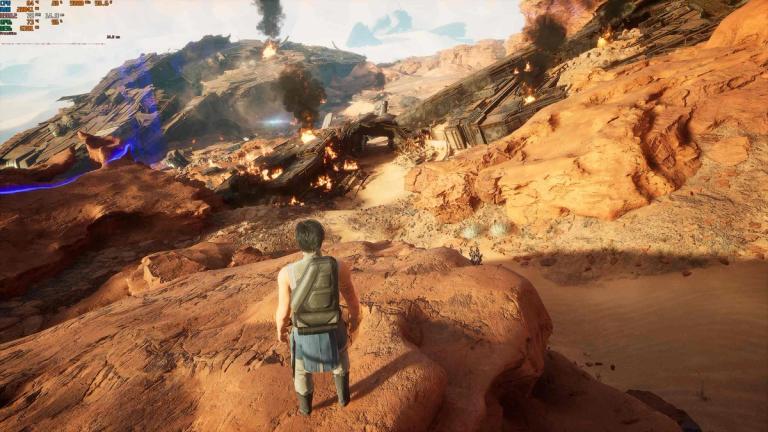
As usual here at Blast, we aim to strike a perfect balance between minimal loss in visual quality with maximum boost in performance. That's not always easy, and Dune: Awakening requires some considerable choices. We'll give you alternatives so you can choose what better fits your needs. Before we get started, though, we recommend you use the area screenshot below as your benchmark. It is, by far, the most demanding area of the tutorial sequence.
Graphics Settings:
- Window Mode- Windowed Fullscreen. You'll often be alt-tabbing to read guides or check discord, so don't go through the hassle of a flashing screen.
- Upscaling Quality- Ultra.
- Upscaling Method- DLSS for Nvidia, FSR for AMD, XESS for Intel. Ignore TSR and TAA.
- Frame Generation Method- FSR Frame Gen can be used with DLSS upscaling, which is excellent. If you have a 30 series or older Nvidia card or an AMD GPU, use it.
- Override Upscaling and Resolution Scale- Use this if you want to micromanage what your upscaler will do. Turning Override On will allow you to move the Resolution Scale slider from 1 to 100, which is the % of the native resolution at which the game will render.
- Nvidia Reflex- Turn it on if you own a Nvidia card. It will not work if you're using FSR Frame Generation, though.
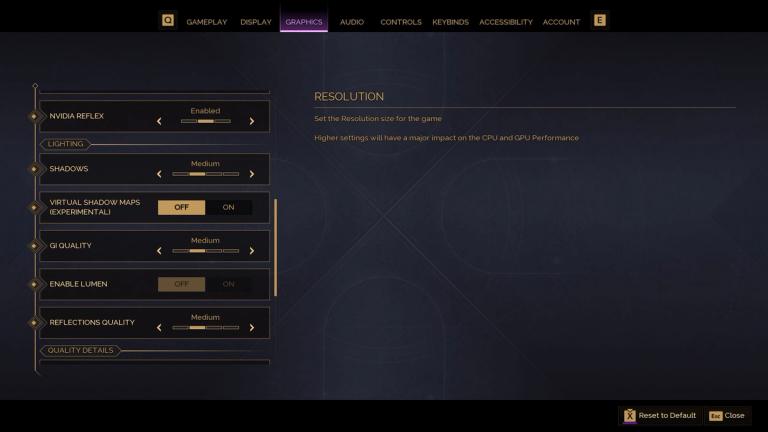
- Shadows- Medium.
- Virtual Shadow Maps- Off.
- GI Quality- Medium*. This will force Lumen Off.
- *Gi Quality for better PCs- High. Turn Lumen On. If you have a lot of FPS to spare with the other settings we present, especially with FrameGen, crank these settings up for a much more impressive lighting solution.
- Reflections Quality- Medium.
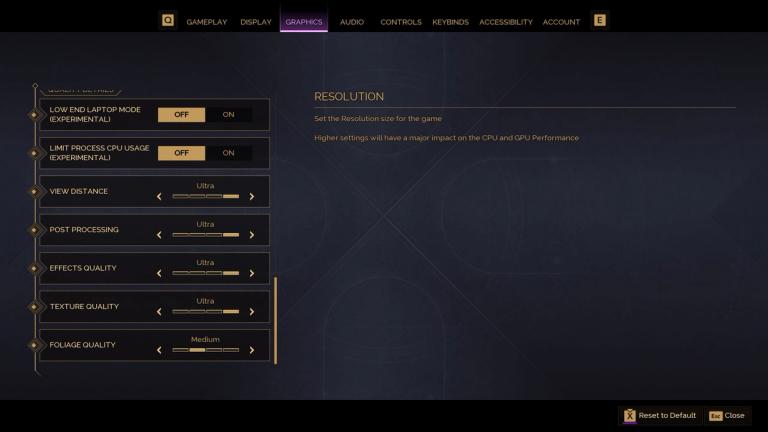
- View Distance- High.
- Post-Processing- Ultra.
- Effects Quality- High.
- Texture Quality- Ultra if 10GB or higher VRAM, High for 8GB.
- Foliage Quality- Medium.
If you are running into big fluctuations in frames, cap your game at 60 fps using your GPU software. And if you are running into crashes with a NVIDIA GPU, install this hotfix and restart your computer, that should fix it.