PEAK: How to fix voice chat not working
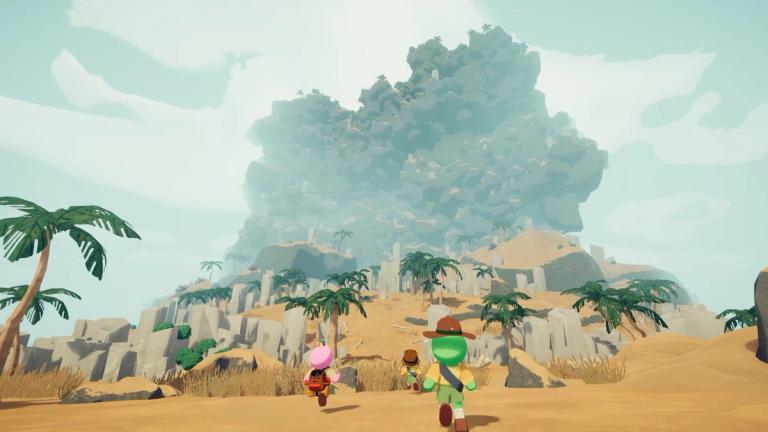
In PEAK, voice chat is kind of important. You and your team are climbing weird mountains together, and without voice chat, it can get messy. You miss warnings, fail to sync movements, and it’s hard to enjoy the game the way it’s meant to be played.
A lot of players have recently run into problems where the voice chat just stops working. If that’s happening to you, there are a few things you can try to get it back.
How to fix voice chat not working in PEAK
Check in-game audio settings

The first thing to look at is the in-game audio settings. Sometimes the game just doesn’t pick the right microphone.
- Pause the game and go to settings.
- Open the audio tab.
- Check the microphone list and try switching between the options to see which one works.
- Set the microphone mode to voice activation if it's set to push-to-talk. Push to talk won't work unless you press the assigned key, which can be missed in fast gameplay.
Also Read: All items in PEAK, explained
Check system sound settings
Sometimes it’s not the game, but your PC settings that are the issue.
- Press Win + I to open settings, then go to System> Sound.
- Make sure your preferred microphone is selected under input devices.
- You can test your mic from here, too, to make sure it’s working.
- Check your output device as well to make sure you’re hearing the game and teammates through the right source.
Update your audio drivers

Outdated or glitchy audio drivers can cause issues with mic detection.
- Open the device manager and find the sound, video, and game controllers section.
- Right-click on your audio device and choose the update driver.
- Select the option to search automatically for updated drivers.
- Restart your PC once it’s done.
Enable mic access in Windows
If Windows is blocking mic access, the game won’t be able to hear anything from your end.
- Go to settings > privacy & security > microphone.
- Make sure the microphone access is turned on.
- Scroll down and make sure apps like Steam and PEAK are allowed to use your mic.
Check Steam voice settings
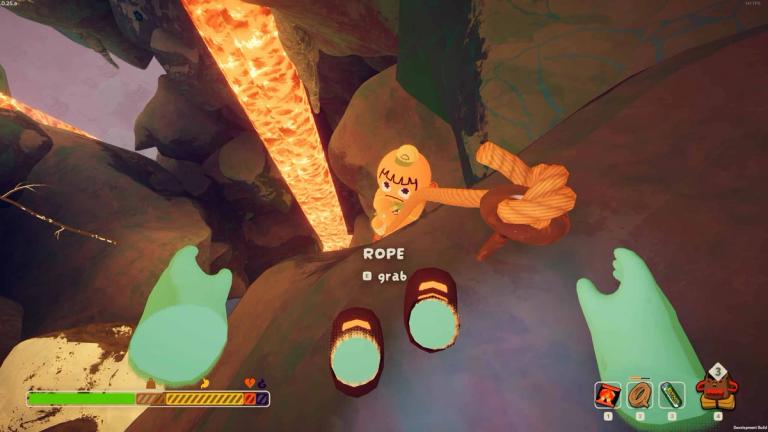
PEAK uses Steam’s voice system, so you’ll want to check that too.
- Open Steam and go to settings > voice.
- Make sure the correct mic is selected.
- Check that mute isn’t turned on by accident.
- Test your voice to confirm it’s working.
- Restart both Steam and PEAK after making changes.
Switch from Vulkan to DX12
Sometimes, the API you’re running the game on can affect certain features like voice chat.
- PEAK lets you choose between Vulkan and DX12.
- Try switching to DX12 from the launcher or game settings.
- Launch the game and see if the voice issue is gone.
Test with another account or system
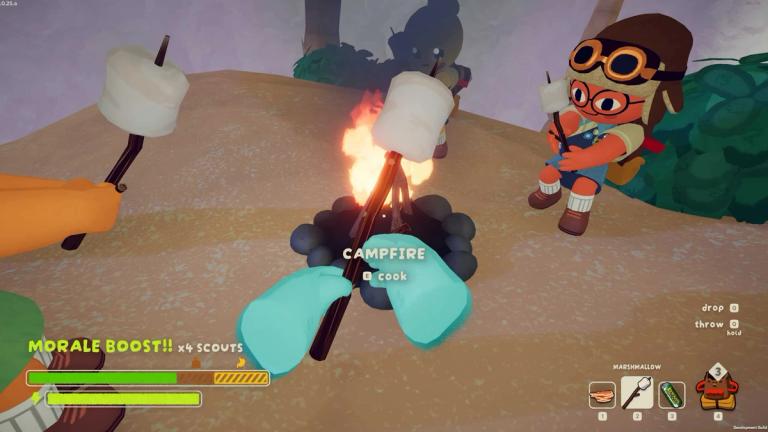
If none of the above helps, try running the game on another PC or a different Steam account. This helps you figure out if the issue is tied to your current setup or account.
Try a wired headset instead of a wireless
Wireless headsets can sometimes drop mic input, especially with unstable Bluetooth connections.
Use third-party voice chat if nothing works
As a temporary fix, you can use Discord or Steam’s overlay chat.
Also Read: All cosmetics in PEAK and how to get them
FAQs
Why is voice chat not working in PEAK?
- PEAK uses Steam voice chat, and issues can come from wrong mic settings, Windows privacy blocks, outdated drivers, or even network problems.
Does PEAK support push to talk and voice activation?
- Yes, it supports both. If you’re not hearing anything or others can’t hear you, check if you’ve accidentally set it to push to talk and aren’t using the hotkey.
Can antivirus or firewall block voice chat?
- Yes, some security software can block voice data. You can test this by temporarily disabling them or adding exceptions for Steam and PEAK.
Does changing from Vulkan to DX12 help
- For some users, yes. Changing to DX12 has fixed the voice issue in certain setups.
Will reinstalling the game fix voice chat?
- It might, especially if the problem is due to corrupted game files.
Is there an official fix from the developers
- Not yet, but based on how common the issue is, they’re likely working on one.